1 · What it does
EU textile products must state their fibre composition (Regulation (EU) No 1007/2011) — using the regulation's allowed fibre names, with percentages by weight that add up to 100%. You enter each product's composition once; the app validates it and a theme block shows it on the product page, in the shopper's language where the app ships fibre names (EN / FR / DE / IT / ES / PL), English otherwise.
The app never invents or guesses a composition. Until a product has a valid composition, the block shows nothing for it.
2 · Getting started
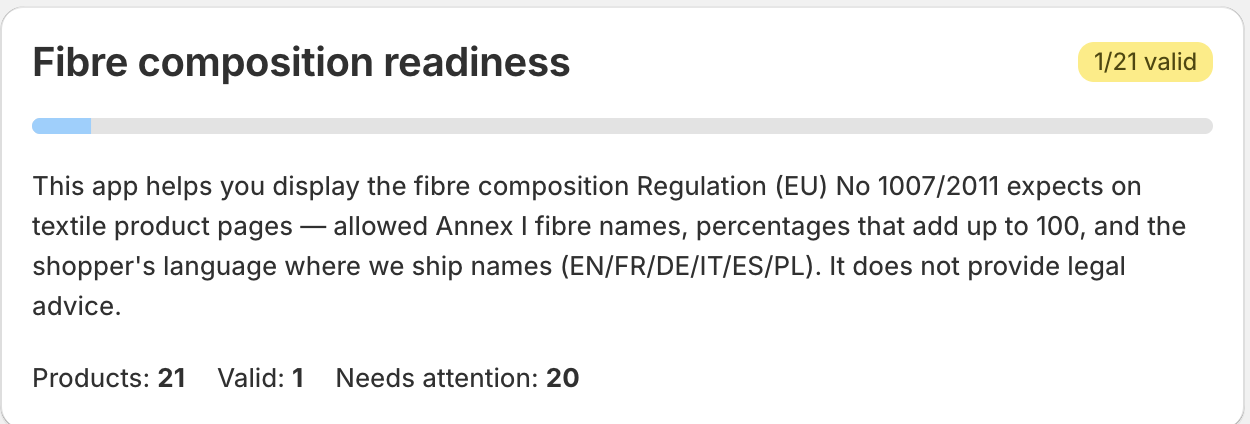
The dashboard's top card — “Fibre composition readiness” — shows an X / Y valid badge and counters (Products / Valid / Needs attention).
3 · Enter a composition
Open Products → “Edit fibre composition” card:
Product — pick from the dropdown (each option shows valid / has issues / no composition).
Then add the fibres, one row per fibre:
- Fibre (Annex I name, e.g. cotton, Baumwolle, coton) — the fibre name.
- Percent — the % by weight.
Buttons: Add fibre (another row) · Remove · Import from product fabric data · Save.
Example — “80 % cotton, 20 % polyester” is two rows: cotton = 80 and polyester = 20.
Import from product fabric data pre-fills fibre names from the product's shopify.fabric category metafield (if present) — it leaves the percentages blank for you to fill, because the app never invents a composition.
4 · The validation rules
A composition is Valid only when all of these hold:
- Every fibre name matches an allowed Annex I name in one of EN / FR / DE / IT / ES / PL. A misspelling is flagged with a suggestion (“did you mean …?”).
- Every fibre has a percentage (missing → flagged), and each is between 0 and 100.
- The percentages add up to 100. If not, you'll see “Percentages add up to {sum}, not 100”.
The sum is only checked once every percentage is filled — so if a row's Percent is blank you'll see “percentage is missing”, not a sum error. Fill every Percent to see the total check.
When valid, fibres are shown in descending weight order (Art. 9).
5 · Show it on the storefront
Dashboard card “Show the composition on your storefront” → Open theme editor, then:
- Open your theme editor on a product template.
- Add the “Textile composition” app block inside the product information section.
- Save.
The block shows the composition as “NN % name” per fibre, comma-joined — e.g. 80 % cotton, 20 % polyester, or 80 % Baumwolle, 20 % Polyester in a German storefront. A heading (default “Composition”), text colour and spacing are adjustable in the theme editor.
The block appears only for products with a valid composition — a product without one shows nothing on the live storefront. In the theme editor you'll see a sample preview so you can place the block; that sample never appears live.
6 · Find products needing attention
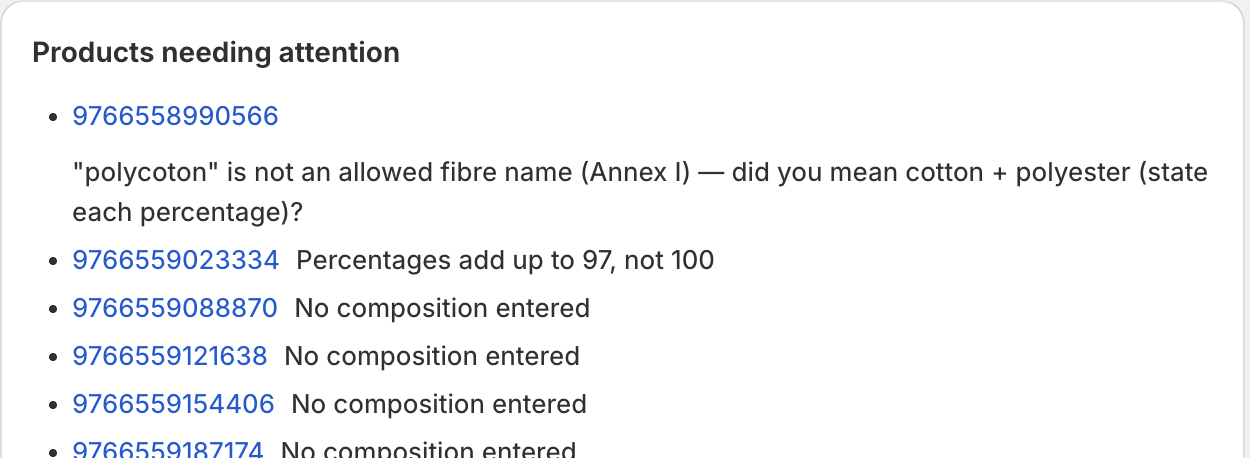
The dashboard “Products needing attention” card lists every product that isn't valid yet (up to 50), each with the reason — e.g. “No composition entered”, an unknown fibre name, or a sum that isn't 100. Click a product to jump straight to its editor.
Per-product badges: Valid · Has issues · No composition. Refresh all products re-checks the whole catalog.
The “Target EU markets” card takes ISO country codes (e.g. DE, FR, IT). If a market needs a language the app doesn't ship fibre names in, shoppers there see the English composition (the block falls back to EN).
7 · Plans
| Plan | What you get |
|---|---|
| Free | Everything: validate and display all your products (dashboard + storefront block), plus the audit CSV export. |
There is one plan and it is free — no product cap, no locked features, nothing to approve.
8 · Commonly confusing (read this)
- “I added the block but nothing shows on the storefront.” The block only renders once a product has a valid composition (fibres recognised + percentages summing to 100). The theme-editor sample preview can make it look done — the live page stays blank until you enter and save a valid composition.
- An “unknown fibre” issue. Fibre names are matched against Annex I in EN / FR / DE / IT / ES / PL only. Type the fibre in one of those languages (a suggestion appears for near-misses). Note this is separate from “Target EU markets”, which can include any EU country (non-supported languages fall back to English on the storefront).